
Menu
Most South West SMBs have been running Microsoft Teams since 2020 without formal governance rules. That was fine – until Copilot. Once Copilot is enabled, it searches everything your users can access. Without tidy governance, that becomes a data security risk.
Covering: Bristol – Bath – Cheltenham – Swindon – Gloucester – South West






Microsoft Teams governance simply means deciding who can create teams, who can see what, how long content is kept, and who cleans things up when a project ends or a person leaves. It is not a technical framework reserved for large enterprises. It is a set of practical decisions every business needs to make.
Here is why it has become urgent: once Microsoft 365 Copilot is enabled in your environment, it will search across every team, SharePoint site, OneDrive folder, and email that a user has permission to access. That includes old, forgotten content – for example, the channel nobody has posted in since 2021, the SharePoint site a former supplier can still see, or the HR folder that was accidentally shared too widely.
We Do Your IT Support is a managed IT provider covering Bristol, Bath, Cheltenham, Swindon, Gloucester, and the wider South West. We help SMBs sort out Teams governance before rolling out Copilot, and we have packaged these steps into what we call our AI Security Pack.
Cast your mind back to March 2020. Offices closed overnight. Staff were told to “just use Teams” and get on with it. The priority was keeping the business running, not writing a microsoft teams governance plan. Nobody had time to think about naming conventions, ownership rules, or what happens when a project ends. Business continuity came first, and rightly so.
The problem is what happened next. By default, Microsoft Teams allows almost any user to start creating new teams for every project, client, or passing idea. Every single one of those teams spins up a linked SharePoint site behind it. In a typical South West SMB today, we see:
Common governance failures compound over time. When staff leave, their teams become ownerless. Guest access granted to external suppliers during a project stays open long after the work is done. There are no clear rules for when to archive teams or delete old content.
Microsoft teams governance prevents uncontrolled team sprawl, and governance establishes policies for team creation to prevent duplicate teams and content confusion. But Microsoft designed Teams to be easy to adopt, flexible, fast, open. That same flexibility, without rules, creates the mess most businesses find themselves in today. This is normal. It is fixable. It is not your fault.
Governance is simply agreeing how ms teams and SharePoint should be created, named, used, secured, and eventually cleaned up – then sticking to those agreements in practice. Effective governance includes user access management and data protection rules, and it balances security and compliance requirements without stifling productivity.
Here is what that covers:
Implement standardised naming conventions for Microsoft Teams. Use a specific naming convention such as “DEPT–Client–Project–Year” (e.g. “HR–Recruitment–GraduateIntake–2026”). Apply the pattern consistently across teams, channels, and Sharepoint sites so everyone (and Copilot) can tell at a glance what something is, whether it is active, and who it belongs to.
Decide who can create teams. Should everyone be allowed, or only certain roles? For high-sensitivity areas like finance or HR, consider requiring an approval process. This is where team creation controls matter most. You can also use Microsoft Teams templates and team templates to streamline the process and ensure new teams are set up consistently.
Every Microsoft Teams group should have at least one owner. Assigning multiple owners per team enhances continuity and management; policies should require a minimum of two owners for each team. Group owners are responsible for managing membership, reviewing guest access, and tidying up when a project completes.
Governance and lifecycle management means setting rules so inactive teams are archived or removed after a defined period. Rather than leaving dead teams forever, define a review point – say 90 or 180 days of inactivity – and act on it. Establish a data retention policy to manage data lifecycle effectively. Retention policies help ensure regulatory compliance, prevent data from being deleted prematurely, and can automatically delete data after a set period. Retention policies should align with legal and regulatory requirements.
Define when inviting external users is appropriate, what external guests can see and do, and how often those guest lists should be reviewed and cleaned. Access controls protect sensitive data by managing external access and guest invitations, and granular access controls reduce data leakage risks by restricting information sharing.
Regularly check “who can see what” across both the Microsoft Teams environment and linked SharePoint sites. Focus on sensitive areas: finance, HR, legal. Look for access permissions that are too broad and tighten them.
Use sensitivity labels to classify and protect sensitive data where your licence allows. Sensitivity labels classify data based on confidentiality levels, enforce security policies for Microsoft Teams content, and can restrict access to sensitive information in Teams. Also consider retention policies for chats and files, and simple best practices to reduce accidental oversharing.
Third party app governance includes defining policies for app integrations to mitigate security risks. Establish clear app usage policies for Microsoft Teams, use app permission policies to control third-party app access, regularly review app permissions to maintain security, and limit app installations to prevent unauthorised data access. Regular audits on app usage ensure compliance with security policies, and you should implement automated access reviews for app permissions.
Copilot searches across teams, SharePoint sites, OneDrive, and emails – anything the user has permission to access. Sloppy access permissions become direct security risks the moment Copilot is switched on. Here are the five governance rules we insist on before any Copilot rollout.
Every Microsoft Teams group should have at least two owners. Ownerless teams can lead to limited management capabilities – nobody to manage membership, review guests, or clean up. Regular audits help identify teams without owners to prevent misuse. Assign at least two owners to each Microsoft Team before enabling Copilot. Team owners are accountable for what happens inside their team.
External users from old projects often still have access to files and channels. Regularly review guest user permissions to maintain security. Set automatic guest expiration periods of 180 days and implement automated guest access reviews every 180 days. Restrict guest access based on sensitivity labels assigned to specific teams. Implement approval processes for guest access requests and control guest permissions to prevent unauthorised access. Your guest access policies should spell out who can invite external guests and under what conditions. Sensitivity labels help manage guest access based on data sensitivity, and regular audits of sensitivity labels are recommended for security.
Require a specific naming convention for all teams, channels, and SharePoint sites. When your Teams environment follows a clear naming pattern, Copilot results are understandable and Teams users can tell internal from client from HR content at a glance. Use templates to streamline team creation in Microsoft Teams – Microsoft Teams templates enforce consistency from day one.
Regularly audit inactive Microsoft Teams to improve organisation. Establish policies for managing empty Microsoft Teams groups. Automated policies for archiving and deleting inactive teams maintain efficiency. Teams should be archived or removed after 90 days of inactivity, though some businesses extend this to 180 days for longer projects. Expiration policies notify owners 30, 15, and 1 day before team expiry, giving them time to act. Auto-archiving transitions inactive teams to a read-only state, preserving content without ongoing risk.
In plain English: only give people access to what they actually need. Remove “Everyone” and broad company-wide access from sensitive SharePoint sites. Review private and shared channels to ensure access is appropriate. Check private channels for content that should be restricted further. Review public teams to ensure sensitive data is not exposed to the whole organisation.
You do not need to be an IT expert to understand the outcomes of a permissions audit, even if we handle the technical steps. Regular audits of Teams content and user access are essential, and regular audits help maintain a secure and accessible content environment.
Here is what a practical audit involves:
A well-governed environment increases user productivity by reducing data clutter. We Do Your IT Support conducts this kind of audit as the first step in a Copilot security review, turning the technical data into plain-English actions for business owners to approve.
Use the Teams admin centre to identify teams with large memberships, many guests, or no active owners. Flag these for follow-up. Access reviews through Azure Active Directory (now Entra ID) can highlight stale accounts and permissions.
The SharePoint admin centre provides site-level permissions reports showing which users and groups can access each site, including where "Everyone except external users" has been applied. Most SMBs are genuinely surprised to discover how widely some sensitive libraries - finance, payroll, disciplinary documents - are exposed once the audit is run.
Part of a good Microsoft Teams governance plan is translating these findings into a simple report: which teams are high risk, which SharePoint sites are over-shared, which guest accounts should be removed, and what changes are recommended with a timetable to fix them.
Even with the best intentions, manual Microsoft teams management does not scale. Busy teams forget to review membership. Owners leave without handing over. Permissions drift. That is where AvePoint Elements Workspace Management comes in… a specialist Microsoft 365 governance tool we use to automate the ongoing governance work for SMBs.
Microsoft’s native tools can do some of this, but mostly through manual effort, PowerShell scripting, and recurring admin time. For small it teams or businesses using outsourced IT support, AvePoint reduces the day-to-day admin load significantly.
We Do Your IT Support deploys and manages AvePoint Elements for South West SMBs so governance runs quietly in the background, giving you administrative control without burdening your staff.
Here is a scenario we see regularly: an employee joined a “Board–MandA–2022” team three years ago for a single meeting. They never left. When Copilot is enabled, it can summarise every document in that team for them; merger plans, financial projections, legal opinions, because the access permissions are still active.
Copilot does not create new access. It simply makes existing access far more visible and searchable. That is why messy ms teams governance quickly turns into a data security issue. If your Microsoft Teams environment is full of old project teams, orphaned teams, and overly broad Sharepoint sites, Copilot might surface confidential HR notes, historic pricing, or legal documents to people who should never see them.
of SharePoint sites have at least one oversharing pattern, including anonymous links, broken inheritance, and “Everyone except external users” groups.
of former employees still had access to company spreadsheets they should no longer be able to see. These are precisely the gaps Copilot exposes.
Training on Teams features and security practices is essential for organisational compliance. Assigning multiple owners to teams enhances continuity and security. A well-governed environment – clear team ownership, tight guest access, least-privilege permissions, and regular teams lifecycle management – means Copilot can be deployed with confidence rather than anxiety.
We Do Your IT Support treats governance as a non-negotiable prerequisite for Copilot rollout. We include it in our AI Security Pack to avoid the “turn it on and hope for the best” approach that leads to data breaches and security incidents.
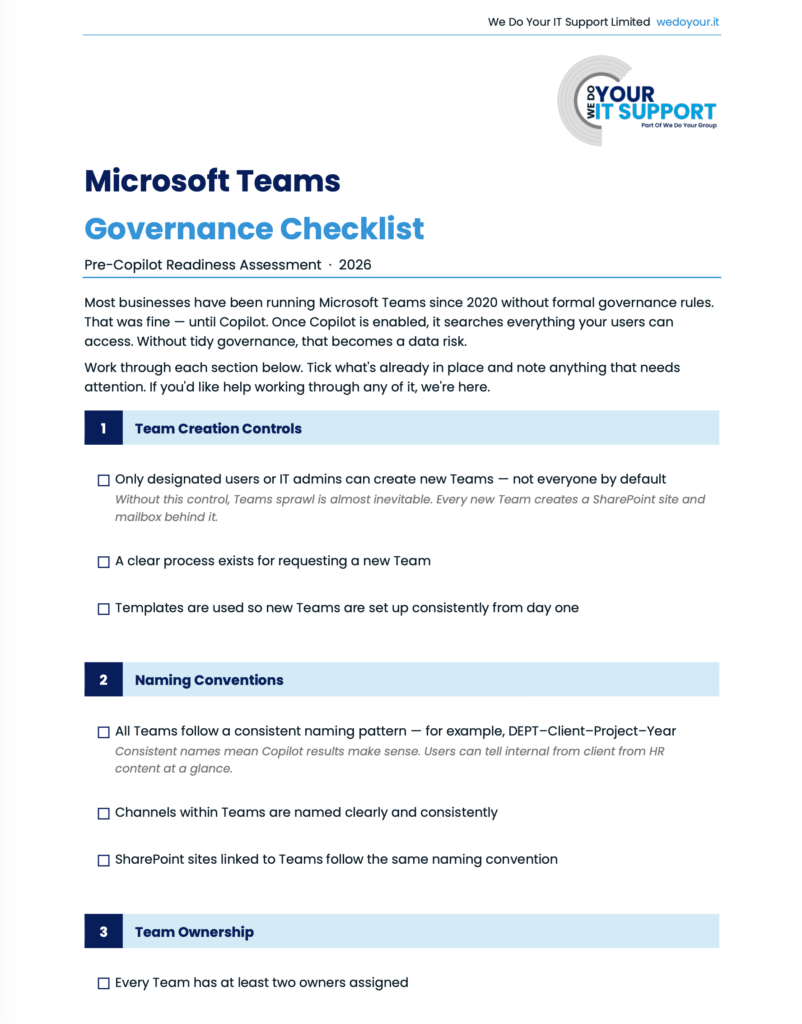
Our free, one-page PDF uses a traffic-light system – red, amber, green – so you can quickly see which areas of your Teams environment need attention before enabling Copilot. It also includes questions to ask your IT support provider about SharePoint sites, permission reviews, lifecycle policies, and data protection measures.
Our AI Security Pack is designed for SMBs in Bristol, Bath, Cheltenham, Swindon, Gloucester, and the wider South West who want to use Microsoft 365 Copilot safely.
Here is what we deliver:
Full review of your Microsoft 365 environment: teams usage, SharePoint permissions, guest accounts, inactive teams, and unused teams
Plain-English recommendations to fix permissions, remove stale external access, and strengthen security across sensitive areas
We configure Microsoft teams templates, enforce naming conventions, set up controlled team creation processes (including approval-based creation for high-risk areas), and establish governance rules across your teams settings
For clients who need it, we deploy AvePoint Elements Workspace Management to automate recertification, lifecycle, and permission drift alerts so your governance strategy remains consistent over time
Our goal is operational efficiency and security without complexity. We develop strategies proportionate to your size and budget, because effective Microsoft teams governance does not have to look like an enterprise programme to work.
Governance stops data sprawl, accidental oversharing, and confusion in your Microsoft teams environment. Without it, data scatters across many teams and Sharepoint sites with unclear ownership and access. This matters especially as tools like Copilot can access all content a user can see, including forgotten teams. The benefits are clear: improved data security, easier information retrieval, fewer duplicate teams, and reduced risk when staff change roles or leave. It also helps meet regulatory and contractual obligations like NDAs and UK GDPR. A productive teams environment is a governed one.
A Teams governance checklist outlines decisions and actions on team creation, naming, ownership, guest access, and archiving or deleting teams. It captures your governance best practices in one place.Our downloadable checklist, designed for non-technical managers, helps you review your ms teams environment quickly and spot gaps. Use it to guide discussions with your IT support provider about governance before enabling Copilot.
Auditing SharePoint involves listing all sites, reviewing access (users and groups), and spotting overly broad permissions or unwanted external users. Watch for “Everyone except external users,” anonymous links, or outdated guest accounts. Admins can use Microsoft 365 admin centre reports, but many SMBs prefer partners like We Do Your IT Support to run and interpret audits. The result should be a simple summary of high-risk sites, needed changes, and a timeline to fix them before Copilot rollout.
AvePoint Elements Workspace Management automates governance tasks like team creation controls, membership recertification, lifecycle policies, and alerts on risky permission changes. For SMBs, this means no manual reviews for every team. It prompts owners regularly and structures managing external users, ensuring consistent security protocols. We deploy and manage AvePoint so business owners get strong ms teams governance without extra tool management.
Copilot shows users only what they can access but makes it much easier to find and combine that content. This amplifies any governance gaps. Lingering access to old teams or sensitive channels means Copilot can expose that content. Good governance ensures Copilot boosts productivity without risking data leaks by controlling external access, enforcing least privilege permissions, and managing team lifecycles to keep the environment clean.
If you’ve read this far, you already know the risk. Orphaned teams, overly broad SharePoint permissions, guest accounts from projects that ended two years ago… none of which matters much until Copilot is switched on. Then all of it does.
We Do Your IT Support runs a dedicated Copilot Security Review for SMBs across Bristol, Bath, Cheltenham, Swindon, Gloucester, and the wider South West. We audit your Microsoft 365 environment, identify exactly where your governance gaps are, and give you a plain-English remediation plan before you touch Copilot licensing.
It is the first step in our AI Security Pack and it’s the step most businesses wish they had taken sooner.

This website uses cookies to improve your experience. Choose what you're happy with.
Required for the site to function and can't be switched off.
Help us improve the website. Turn on if you agree.
Used for ads and personalisation. Turn on if you agree.